Blog / Build with AI /
TabHue: colour-coded tabs, focus sessions and a pet that cheers you on
Forty tabs open, and the one you need is somewhere in the middle, squashed down to a favicon you can’t tell apart from the nine next to it. You click, wrong tab. Click again, wrong again. Then you give up and open it fresh, which makes it forty-one.
That’s the problem I built TabHue for. I should say that clearly up front: TabHue is my extension, so read this as the maker explaining what it does, not as an independent review. It’s free to add to Chrome, and I’ll tell you exactly what’s free and what isn’t.

What TabHue does, in one line
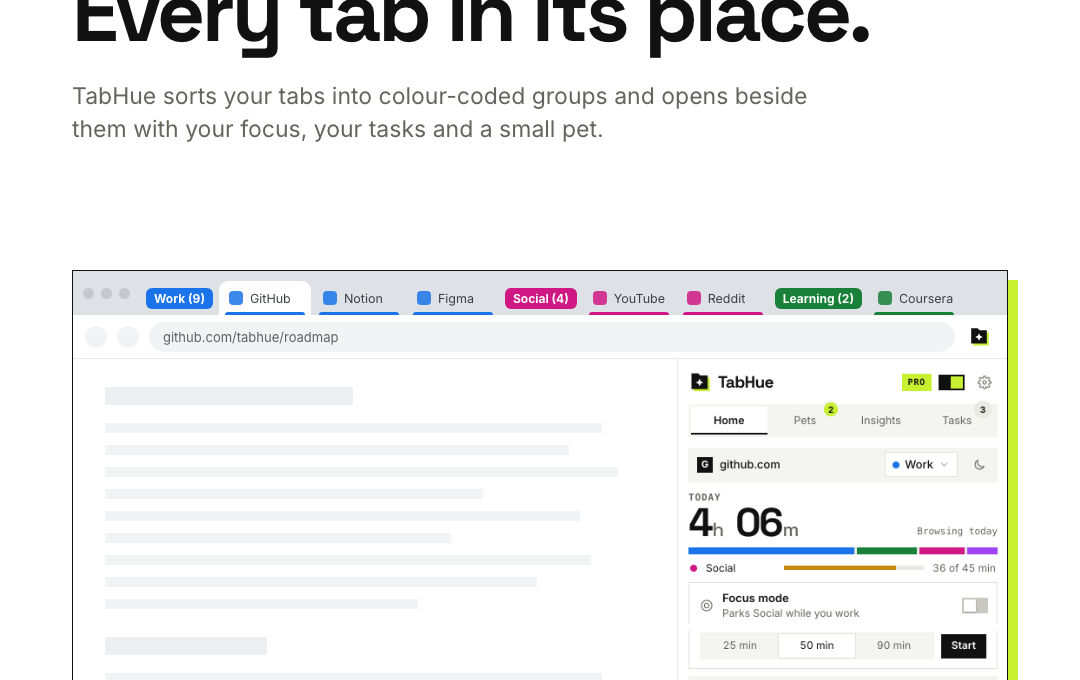
It sorts your tabs into colour-coded Chrome tab groups (Social, Work, Learning) as you open them, and opens in Chrome’s side panel with your focus sessions, your tasks and a small pet that keeps you company.
No sign-up and no account. You add it, and it starts sorting.
Tabs you can actually find
The core is still the thing I wanted most: tabs that tell you what they are at a glance.
- Automatic groups. Popular social, work and learning sites are grouped as soon as you open them, from video and chat sites to email, documents and AI assistants. University and school sites go into Learning.
- One-click moves. See the current tab’s category and move it in one click, or right-click a tab to assign it.
- Search everything. Press
/to search every tab, open, parked or saved, in any window. - Duplicates gone. Find and close duplicate tabs in one click, with Undo if you were too quick.
- Your names, your colours. Rename and recolour categories and drag them into the order you like.
It uses Chrome’s own tab groups, so nothing about how Chrome works changes. Your tabs just stop looking identical.
Focus without losing your place
This is the part people underrate. Start a focus session for 25, 50 or 90 minutes, on a task if you like. Focus mode parks your distracting categories while you work, and when you’re done they come back exactly as they were. Pinned tabs are never closed.
If one category eats your day (Social, usually), you can set a daily limit on it, and your pet gives you a heads-up at 75%.
Parking tabs you aren’t using also saves memory, which matters more than people think on an older laptop.
A to-do list that sits beside your tabs
TabHue keeps a short task list in the side panel:
- Star your top 3 for today.
- Attach the page you’re on to a task.
- Set a one-off reminder, and your pet brings it to whatever page you’re on when it’s time.
- Snooze a tab until later today, tonight, tomorrow or next week.
- Right-click any page to add it to Tasks.
It’s deliberately small. It isn’t trying to replace a project tool. It’s for the three things you actually need to finish before you close the laptop.
The pet
I know how this sounds. A pet, in a tab manager? But it’s the part that makes the rest stick.
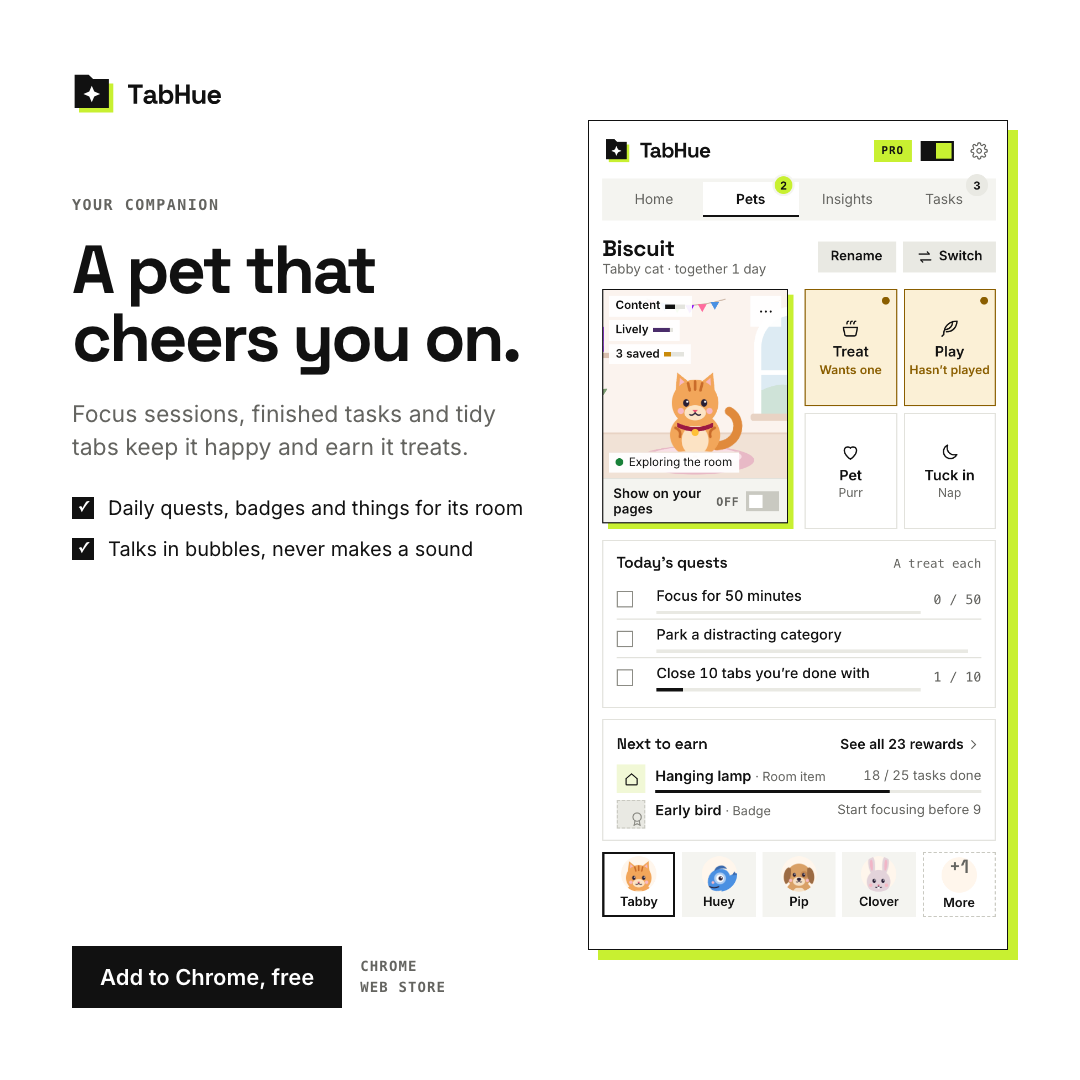
Your pet sits beside your work. Focus sessions, finished tasks and tidy tabs keep it happy and earn it treats. There are daily quests, badges, streaks and things for its room. It talks in small bubbles and never makes a sound, so it’s safe in a quiet office.
Tabby the cat comes free. You can rename yours (the one in the screenshot has been called Biscuit). Huey the chameleon, Pip the puppy, Clover the bunny and Sage the owl come with Pro.
If you like, the pet can also sit on the edge of the pages you visit. It asks first.
Insights: where did the day go?
TabHue shows your time per category and per site, your focus sessions and your finished tasks, for today and the last 7 days. It’s an honest mirror. The first time you see how long “just checking” Social really took, you’ll understand why I built the daily limit.
Privacy
As someone who runs websites for a living, I care about this part. TabHue has no account. It doesn’t send anything about the pages you visit to me or anyone else. Your browsing data stays on your device.
You can back up everything to one file and load it on another computer. If you want a readable summary, drop that file on tabhue.com/report and you get a 7-day report. The file is read in your browser, never uploaded.
The one exception is Pro sync, and it’s your choice. It syncs your categories, rules and tasks through your own Google account, using Chrome’s built-in sync. Your browsing history isn’t part of it, and nothing goes to a TabHue server.
Free vs Pro
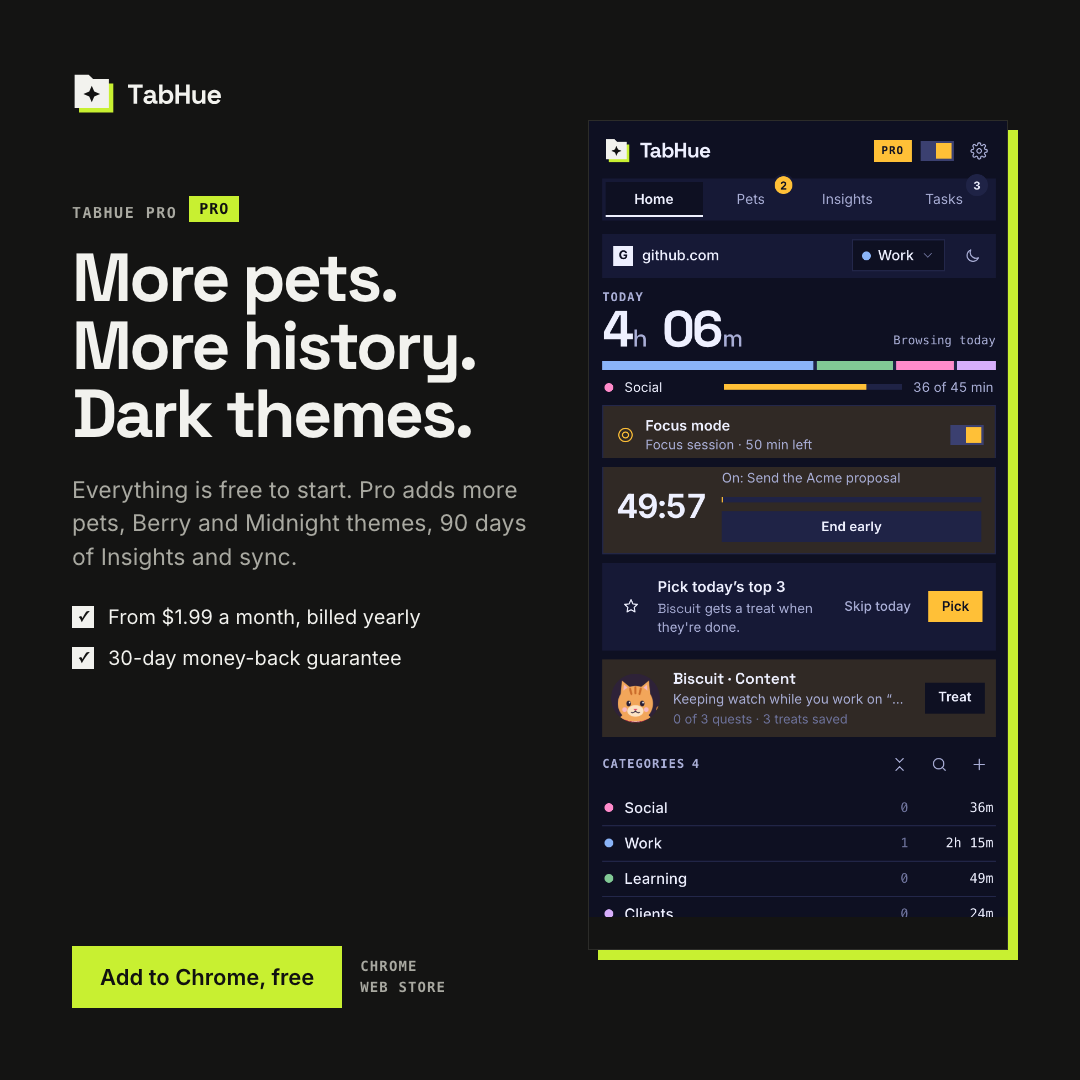
TabHue is free, and the free version is a complete tool: groups, focus, tasks, the cat and 7 days of Insights.
Pro adds:
- the four other pets;
- the Berry and Midnight themes;
- unlimited custom categories and your own website rules;
- daily limits on every category;
- 30 and 90 days of Insights, plus a weekly report;
- workspaces (save a window, reopen it later) and focus schedules;
- sync between your computers, and use on up to 5 devices.
Pro is from $1.99 a month, billed yearly, with a 30-day money-back guarantee. There’s no free trial, but if Pro isn’t for you, you get your money back within 30 days.
How to start
- Open TabHue on the Chrome Web Store.
- Click Add to Chrome. It’s free.
- Pin the TabHue icon, open the side panel, and open a few tabs. Watch them sort themselves.
- Try one 25-minute focus session before you decide anything.
If you want the story of how it was made, I wrote about building TabHue with AI back in February.
Related reading
And if you try it: what’s the one tab habit you’d most like to break? Tell me, because that’s usually how the next feature starts.